
Best USB-C Hubs for Dual Monitors (2026): Tested & Compared

Quick Answer
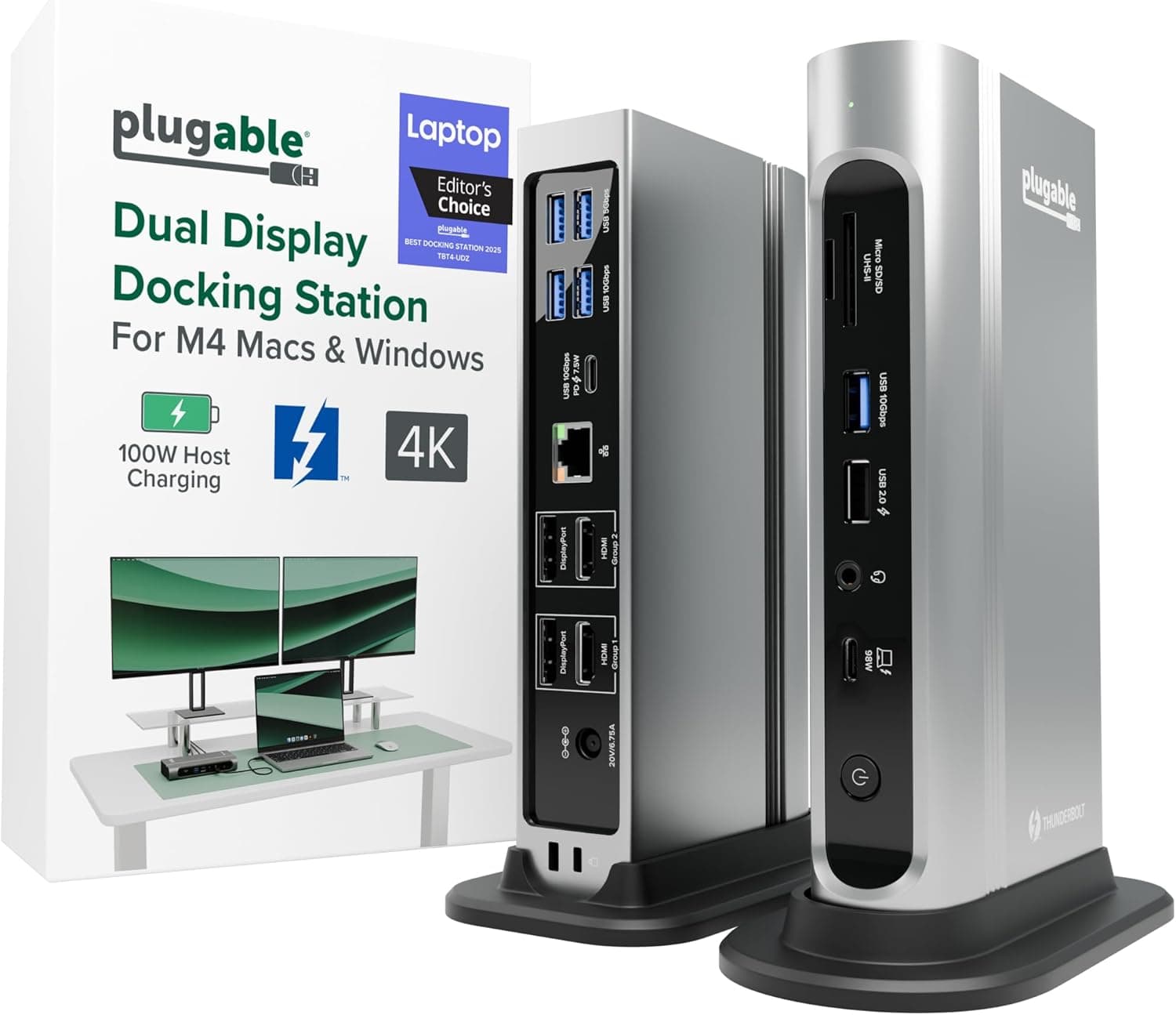
The Plugable Thunderbolt 4 Dock is the best USB-C hub for dual monitors — it natively drives two 4K@60Hz displays over Thunderbolt 4, delivers 100W laptop charging, and provides 11 total ports including three downstream Thunderbolt 4. For a budget alternative, the UGREEN 7-in-1 drives dual displays via HDMI on any USB-C laptop for under $30, though dual-display mode is limited to 4K@30Hz.
Important: Most USB-C hubs only support one external display. Driving two monitors simultaneously requires either a Thunderbolt 4 dock, a DisplayLink-enabled hub, or a laptop with USB4 and DisplayPort Alt Mode 2.0 support.
We compared six USB-C hubs specifically for dual-monitor home office and workstation setups — evaluating display stability, power delivery accuracy, port bandwidth, and thermal performance under sustained load. Here's what actually works.
Quick Comparison
| Product | Rating | Key Features | Best For | Price Range | |
|---|---|---|---|---|---|
Plugable Thunderbolt 4 Dock (TBT4-UDX1) | 4.6/5.0 |
| Power users running dual 4K monitors, external SSDs, Ethernet, and multiple peripherals from a single cable. MacBook Pro M-series Pro/Max or Windows Thunderbolt 4 laptops. | $$$ Check Amazon | See Price → |
StarTech Thunderbolt 4 Dock (Dual 4K) | 4.5/5.0 |
| Windows Thunderbolt 4 laptops — Dell XPS, HP Spectre, Lenovo ThinkPad X1. Great for IT-managed environments thanks to StarTech's enterprise support reputation. | $$$ Check Amazon | See Price → |
UGREEN 7-in-1 Docking Station (Dual Monitor, USB-C) | 4.5/5.0 |
| Budget home office users who need dual monitors and USB-A ports on a non-Thunderbolt laptop, without paying Thunderbolt dock prices. Works with MacBook, Windows laptops, and most USB-C devices. | $ Check Amazon | See Price → |
UGREEN Revodok Pro 12-in-1 | 4.5/5.0 |
| Windows laptop users with DisplayPort-capable monitors who want both displays at full 60Hz without spending on a Thunderbolt dock. Also good for photographers needing accurate color on both screens. | $$ Check Amazon | See Price → |
Plugable USB-C Triple Display Dock (TBT4-UDZ) | 4.4/5.0 |
| Power users who need three external monitors — trading floor setups, developers with reference displays, or video editors with a dedicated preview monitor. Also for USB4 laptop users who want triple display without a full Thunderbolt 4 dock. | $$$ Check Amazon | See Price → |
OWC Thunderbolt 4 Hub | 4.6/5.0 |
| Mac users who want to daisy-chain two 6K Thunderbolt monitors (Apple Pro Display XDR, LG UltraFine 6K) with a minimal, elegant setup. Best paired with MacBook Pro M3 Pro/Max or Mac mini. | $$$ Check Amazon | Out of stock |
What Makes a Hub Good for Dual Monitors?
Before buying, understand this: the hub is only half the equation. Your laptop's port determines what's possible. Here's the technical gate most buyers miss.
Thunderbolt 4 vs. USB-C Alt Mode — What Your Port Actually Supports
Thunderbolt 4 ports (labeled with a lightning bolt icon) have 40 Gbps of dedicated bandwidth — enough to drive two 4K@60Hz displays, charge the laptop, and transfer data simultaneously. Plain USB-C ports use Alt Mode, which shares a single lane of bandwidth across display output, data, and power. Most plain USB-C ports can only drive one external display. Check your laptop's spec sheet: look for “Thunderbolt 4” — not just “USB-C.”
DisplayLink: The Software Workaround That Enables More Laptops
DisplayLink technology adds a second (or third) display by rendering it in software on your laptop's CPU/GPU and sending the image over USB. This works on laptops that can't natively drive two displays, including MacBook Air and most USB-C-only Windows ultrabooks. The tradeoff: DisplayLink requires driver installation, uses 5–15% CPU under load, and introduces a small latency increase. For productivity it's seamless; for fast-paced video editing or gaming, native Thunderbolt output is better. See our guide on USB-C vs. Thunderbolt — what's the difference for a deeper comparison.
MacBook Air Warning — No Hub Can Override the Hardware Limit
The limit depends on which chip generation you have, and no hub or dock changes it — it lives in the number of display engines on the chip. M1 and M2 MacBook Air support exactly one external display. The M3 MacBook Air supports two, but only with the lid closed (clamshell mode, macOS 14.3 or later), because the second engine takes over from the built-in screen. The M4 generation supports two with the lid open, alongside the built-in display. MacBook Pro with Pro/Max chips has always supported more. If you own an M1 or M2 Air, the only single-cable route to two extended displays is a DisplayLink dock — we explain why in why your USB-C hub only drives one display, or skip to the single-display options in our best USB-C hubs for MacBook guide.
Power Delivery: How Much Do You Actually Need?
Most ultrabooks charge fully on 45–65W. The hub consumes 5–15W itself, so you need at least 60–85W of PD passthrough to keep pace with consumption. For 15“ or 16“ laptops under sustained load, aim for 85–96W passthrough. Gaming laptops requiring 140W+ should not rely on hub PD — use the laptop's own power adapter for charging and connect the hub for display and peripheral expansion only. Learn more about how USB-C Power Delivery works.
Best USB-C Hubs for Dual Monitors — Full Reviews
Key Specifications
- Thunderbolt 4 (40 Gbps) — dual 4K@60Hz or single 8K display
- 100W laptop charging passthrough
- 11 ports: 3× Thunderbolt 4, 3× USB-A, USB-C, 2.5GbE, SD, audio
- Single Thunderbolt cable to laptop eliminates desk clutter
- Compatible with macOS and Windows (Thunderbolt 4 required)
Pros
- Full 100W charging passthrough — charges even a 16" MacBook Pro at full speed
- True dual 4K@60Hz over Thunderbolt 4 — no DisplayLink drivers, no compression
- 2.5 Gigabit Ethernet plus three downstream Thunderbolt ports for storage and daisy-chaining
- Exceptionally stable — no random disconnects under sustained load
Cons
- Requires a Thunderbolt 4 port on your laptop (drops to USB 3.2 speeds on plain USB-C)
- Premium price (~$199) — overkill if you only need 2–3 ports
- Laptop compatibility limited to Thunderbolt 4 / USB4 hosts for full dual-display
Why it's a good choice
The Plugable Thunderbolt 4 Dock delivers a genuine 100W of laptop charging while simultaneously driving two 4K@60Hz displays (or a single 8K) over native Thunderbolt 4 — no DisplayLink drivers required. Its three downstream Thunderbolt 4 ports and 2.5GbE mean one cable replaces your entire desk wiring.
✓ Buy if you have:
Thunderbolt 4 laptop owners who want a permanent desk dock. Video editors, developers, and designers who run dual large monitors and charge external SSDs simultaneously.
✗ Skip if you have:
Laptop owners with plain USB-C ports (no Thunderbolt). Budget-sensitive users who only need a display and a couple of USB-A ports.
Best for:
Power users running dual 4K monitors, external SSDs, Ethernet, and multiple peripherals from a single cable. MacBook Pro M-series Pro/Max or Windows Thunderbolt 4 laptops.
Key Specifications
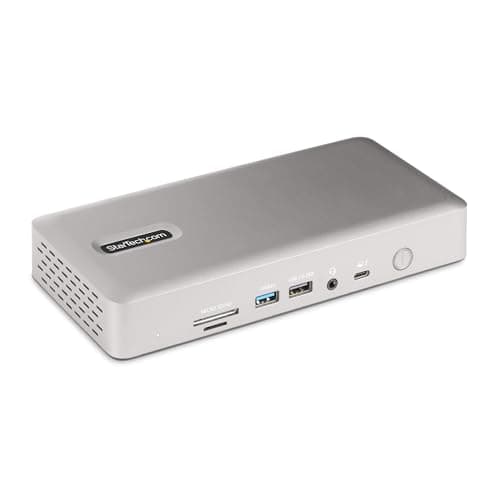
- Thunderbolt 4 — dual 4K@60Hz display support
- 96W laptop power delivery
- Multi-port layout: 3× Thunderbolt 4, USB-A, USB-C, Gigabit Ethernet, SD, audio
- Front-facing ports for quick device connection
- Intel Thunderbolt 4 certified
Pros
- Three Thunderbolt 4 ports — future-proof for daisy-chaining and external storage
- Front-facing ports make plugging in drives or phones quick
- 96W PD handles Dell XPS 15, HP Spectre 16, and most Windows ultrabooks
- Solid metal housing with reliable enterprise-grade build quality
Cons
- Runs noticeably warm under full load (normal but worth noting)
- Display outputs share Thunderbolt bandwidth — plan port usage carefully
- Priced at the top of the dock range
Why it's a good choice
The StarTech Thunderbolt 4 Dock's downstream Thunderbolt 4 ports give Windows power users genuine flexibility: connect dual 4K@60Hz monitors, external storage, and fast drives simultaneously without sacrificing bandwidth, all backed by 96W laptop charging.
✓ Buy if you have:
Dell XPS 15/16 or HP Spectre users who want a permanent desk dock with enterprise-grade build quality and reliable dual 4K output.
✗ Skip if you have:
MacBook users who get better value from the Plugable Thunderbolt 4 Dock. Anyone whose laptop lacks a Thunderbolt 4 port — the UGREEN 7-in-1 below drives dual displays on any laptop for a fraction of the price.
Best for:
Windows Thunderbolt 4 laptops — Dell XPS, HP Spectre, Lenovo ThinkPad X1. Great for IT-managed environments thanks to StarTech's enterprise support reputation.
UGREEN 7-in-1 Docking Station (Dual Monitor, USB-C)
$28.98
Key Specifications
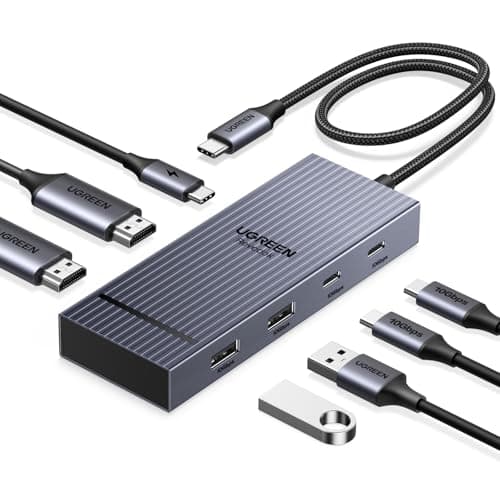
- Dual display: HDMI + HDMI (4K@30Hz dual, or single 4K@60Hz)
- USB-C — works on ANY laptop, no Thunderbolt required
- 7 ports: 2× HDMI, 3× USB-A 3.0, USB-C data, USB-C PD passthrough
- USB-C Alt Mode plus extended-display support across more laptops
- Plug-and-play — compact, travel-friendly footprint
Pros
- Under $30 for genuine dual-HDMI output — best value in this roundup by far
- Works on laptops with plain USB-C (no Thunderbolt needed)
- Compact enough to live permanently in a laptop bag
- Three USB-A ports cover mouse, keyboard, and an external drive at once
Cons
- Dual-display mode runs 4K@30Hz (single display reaches 4K@60Hz) — fine for productivity, not gaming
- USB-C Alt Mode bandwidth is shared across all ports — expect some throughput reduction under full load
- No Ethernet or SD card slot — pure display-plus-USB expansion
Why it's a good choice
For dual-monitor setups on a laptop without Thunderbolt, the UGREEN 7-in-1 is the value champion: two HDMI outputs and USB-A expansion for under $30. If your second monitor is for reference material, email, or communication apps (not gaming), the 4K@30Hz dual-display mode is a worthwhile tradeoff at this price.
✓ Buy if you have:
Budget-conscious home office workers on a plain-USB-C laptop who want dual monitors without the Thunderbolt dock price premium.
✗ Skip if you have:
Anyone who needs both monitors at 4K@60Hz, Ethernet, or SD (step up to the Plugable Thunderbolt 4 Dock). Thunderbolt users who want full bandwidth for external SSDs alongside displays.
Best for:
Budget home office users who need dual monitors and USB-A ports on a non-Thunderbolt laptop, without paying Thunderbolt dock prices. Works with MacBook, Windows laptops, and most USB-C devices.
New USB-C guides, by email
One email when we publish a new guide or meaningfully update an old one. Nothing else.
Key Specifications
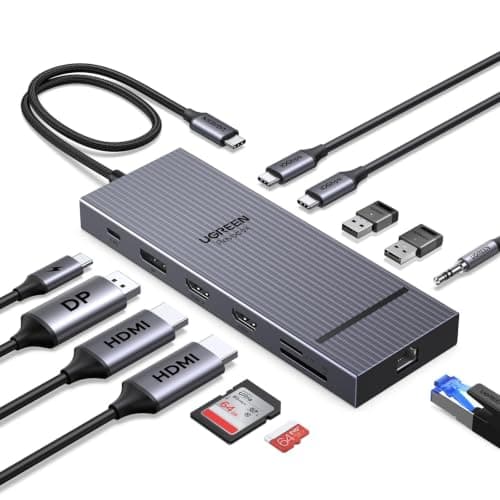
- Dual display: HDMI (4K@60Hz) + DisplayPort (4K@60Hz)
- 100W USB-C Power Delivery — highest in non-Thunderbolt class
- 12 ports: HDMI, DP, 3× USB-A 3.0, USB-C data, SD/microSD, Ethernet, audio
- USB-C Alt Mode with MST (Multi-Stream Transport) support
- Aluminum housing for better thermal management
Pros
- 100W PD — enough to charge most laptops at full speed (no compromise)
- Both HDMI and DisplayPort at 4K@60Hz simultaneously (laptop dependent)
- Aluminum build runs cooler than plastic competitors
- DisplayPort output preferred over HDMI for color-accurate work
Cons
- MST dual-display requires laptop to support DisplayPort MST (verify before buying)
- Some MacBook models with USB-C-only ports may only get single display without MST
- USB-C data port doesn't support video output (charging only)
Why it's a good choice
The Revodok Pro's combination of 100W PD and dual 4K@60Hz (HDMI + DisplayPort) puts it ahead of the UGREEN 7-in-1 for users with DisplayPort monitors who want both displays at full 60Hz. The aluminum housing runs notably cooler under load, which matters for all-day desk use.
✓ Buy if you have:
Windows laptop users with a mix of HDMI and DisplayPort monitors who want full 60Hz on both. Color-critical workers (photographers, designers) who prefer DisplayPort's color depth.
✗ Skip if you have:
MacBook users — the MST dual-display mode has inconsistent results with macOS. Anyone whose laptop only has a single USB-C port and needs more than moderate PD.
Best for:
Windows laptop users with DisplayPort-capable monitors who want both displays at full 60Hz without spending on a Thunderbolt dock. Also good for photographers needing accurate color on both screens.
Plugable USB-C Triple Display Dock (TBT4-UDZ)
$289.99
Key Specifications
- Thunderbolt 4 / USB4 — supports up to 3 external displays
- 96W laptop charging passthrough
- 11 ports: 2× HDMI, 1× DP, 3× USB-A 3.0, USB-C, Ethernet, SD, audio
- DisplayLink chip enables triple-display on non-Thunderbolt USB4 laptops
- Works on Mac, Windows, and ChromeOS (ChromeOS display limited)
Pros
- Only hub in this roundup supporting three displays simultaneously
- DisplayLink fallback means it works on more laptops beyond pure Thunderbolt 4
- Plugable includes excellent customer support and lifetime warranty
- Solid 96W PD covers virtually all laptops
Cons
- DisplayLink requires driver installation (Windows/Mac) — not true plug-and-play
- DisplayLink third display adds slight latency — noticeable in gaming, minor in productivity
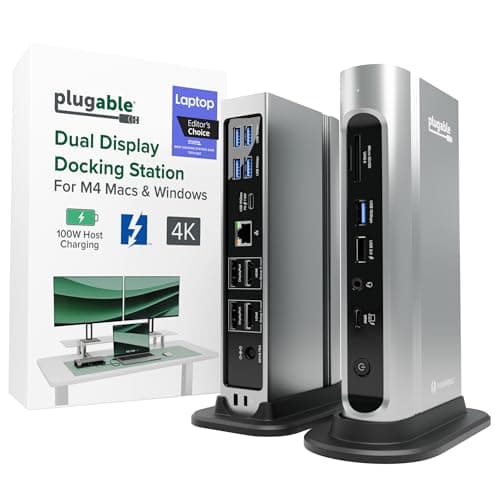
- Larger and heavier than the Plugable Thunderbolt 4 Dock for roughly comparable dual-display performance
Why it's a good choice
The Plugable TBT4-UDZ is the only dock in this guide that handles three displays, and it does so via a smart combination of native Thunderbolt output and DisplayLink for the third screen. For dual monitor use, its 96W PD and Thunderbolt 4 backbone make it a strong alternative to the Plugable Thunderbolt 4 Dock at a comparable price.
✓ Buy if you have:
Anyone needing three monitors. USB4 laptop owners who want triple-display without upgrading to a full Thunderbolt 4 machine.
✗ Skip if you have:
Dual-monitor users who don't need the triple-display capability — the Plugable Thunderbolt 4 Dock or UGREEN 7-in-1 are cleaner choices. Anyone who wants strict plug-and-play (DisplayLink drivers are required).
Best for:
Power users who need three external monitors — trading floor setups, developers with reference displays, or video editors with a dedicated preview monitor. Also for USB4 laptop users who want triple display without a full Thunderbolt 4 dock.
OWC Thunderbolt 4 Hub
$139–$159
Currently unavailable on Amazon
Key Specifications
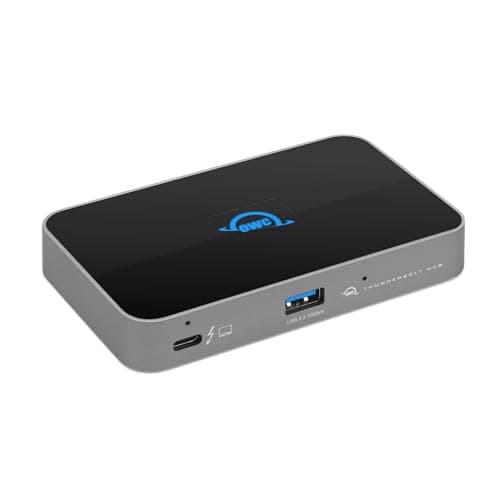
- Thunderbolt 4 host + 3× Thunderbolt 4 downstream ports
- 60W laptop charging (upstream) + 15W device charging
- Supports Thunderbolt daisy-chaining up to 6 devices
- Up to two 6K displays via daisy-chained Thunderbolt monitors
- Compact desktop or portable design
Pros
- Three Thunderbolt 4 downstream ports — ideal for adding monitors and storage simultaneously
- Daisy-chain support enables two 6K Apple Pro Display XDR or LG UltraFine monitors
- Very compact — fits behind a monitor or in a bag
- OWC's reputation for Mac accessory reliability is unmatched
Cons
- Only 60W host charging — insufficient for 16" MacBook Pro under load (needs direct MagSafe)
- No USB-A ports — requires adapters for legacy USB devices
- Higher price per port than the Plugable Thunderbolt 4 Dock for non-Thunderbolt expansion
Why it's a good choice
The OWC Thunderbolt 4 Hub is the right tool for one specific job: daisy-chaining two high-end Thunderbolt monitors from a single port. For Mac users with Apple Pro Display XDRs or LG UltraFine 6K monitors, it's the most elegant solution available.
✓ Buy if you have:
Mac studio/professional users with Thunderbolt-native monitors (Apple Pro Display XDR, LG UltraFine). Anyone who needs maximum TB4 bandwidth allocation across devices rather than a multi-port expansion.
✗ Skip if you have:
Users who need USB-A ports, higher PD for their laptop, or plan to connect standard HDMI/DisplayPort monitors. The Plugable Thunderbolt 4 Dock is a better all-rounder for most people.
Best for:
Mac users who want to daisy-chain two 6K Thunderbolt monitors (Apple Pro Display XDR, LG UltraFine 6K) with a minimal, elegant setup. Best paired with MacBook Pro M3 Pro/Max or Mac mini.
This pick is out of stock at Amazon right now. The alternatives above are available.
What to Look for When Buying a Dual Monitor USB-C Hub
1. Verify Your Laptop Port First
This is the #1 mistake buyers make. Before spending $80–$249 on a hub, confirm your laptop has a Thunderbolt 4 port (for the best experience) or at minimum a USB-C port with DisplayPort Alt Mode. On Windows laptops, check Device Manager under “Human Interface Devices” or search your laptop model + spec sheet. On Mac, go to Apple Menu → About This Mac → System Report → Thunderbolt.
2. Decide: Thunderbolt Dock vs. DisplayLink Hub
If your laptop has Thunderbolt 4, a Thunderbolt dock gives better performance (Plugable Thunderbolt 4 Dock, StarTech Thunderbolt 4 Dock). If your laptop only has USB-C, a USB-C Alt Mode or DisplayLink hub (UGREEN 7-in-1, Plugable TBT4-UDZ) is the practical option — accept any driver requirement and small CPU overhead.
3. Match Resolution and Refresh Rate to Your Monitors
For office productivity with two 1080p or 1440p monitors, any hub in this roundup works. For dual 4K@60Hz, you need Thunderbolt 4 (Plugable Thunderbolt 4 Dock, StarTech Thunderbolt 4 Dock) or a hub with both HDMI 2.0 and DisplayPort Alt Mode (UGREEN Revodok Pro). The UGREEN 7-in-1's 4K@30Hz dual-display mode is a worthwhile compromise for stationary email/reference use.
4. Count the Ports You Actually Use
A typical dual-monitor desk setup needs: 2 display outputs, 2–3 USB-A for mouse/keyboard/drive, and ideally Ethernet and an SD card slot. The budget UGREEN 7-in-1 covers displays and USB-A for under $30; step up to a Thunderbolt dock like the Plugable Thunderbolt 4 Dock if you also need Ethernet, SD, high-speed external SSD throughput (10+ Gbps), or daisy-chained Thunderbolt devices. See our complete home office charging setup guide for a full desk setup checklist.
5. Extended Mode vs. Mirror Mode
All hubs in this roundup support extended desktop mode (different content on each monitor) — this is controlled by your OS display settings, not the hub hardware. Extended mode is what you want for productivity. Mirror mode (same content duplicated) is available too. No hub configuration is needed — just plug in and configure in macOS Display Preferences or Windows Display Settings.
Common Mistakes When Setting Up a Dual Monitor Hub
✗ Mistake: Buying a Thunderbolt 4 dock for a non-Thunderbolt laptop
Fix: Thunderbolt 4 docks work on USB-C ports but only at USB 3.2 speeds — you'll pay a premium for features you can't use. Save $100–$150 and get a DisplayLink hub instead.
✗ Mistake: Assuming MacBook Air can drive two monitors with any dock
Fix: MacBook Air (all M-series) is hardware-limited to one external display. No dock overrides this. If you need dual monitors, you need a MacBook Pro M-series Pro or Max chip.
✗ Mistake: Using a USB-C cable instead of the included Thunderbolt cable
Fix: Thunderbolt 4 docks ship with a Thunderbolt cable for a reason. A generic USB-C cable limits the connection to USB 3.2 speeds and may disable display output. Always use the included cable or a certified Thunderbolt cable.
✗ Mistake: Forgetting to install DisplayLink drivers
Fix: Hubs with DisplayLink chips require driver installation for the second display to work. Without the driver, only the first display activates. Download from displaylink.com for your OS.
✗ Mistake: Buying a hub with inadequate power delivery for your laptop
Fix: If your hub delivers less power than your laptop consumes under load, the battery drains during use. For 15"-16" laptops, verify the hub delivers 85W+ passthrough. Check our guide on how much wattage to charge a laptop for model-specific guidance.