
USB-C Charger Not Charging Your Laptop? Here's How to Fix It

When a USB-C charger stops charging a laptop, the cause is rarely a dead charger — it's almost always the cable, the wattage, or the port. Work through the ordered checklist below from top to bottom: each step rules out one cause before the next. In the large majority of cases the problem is the gear, and a properly-rated charger plus a certified high-wattage cable fixes it.
Quick Answer
If your USB-C charger won't charge your laptop, the fix is almost always one of three things, checked in this order:
- The cable — many USB-C cables are charge-only, low-wattage, or lack the e-marker chip required above 60W. Swap to a certified 100W (or 240W) cable first.
- The wattage — laptops need 60–100W; a 30W phone charger won't charge one under load. Match your laptop's original adapter wattage.
- The port — not all USB-C ports accept charging (some are data-only). Try another port and clean out any lint.
If it's the gear (the most common case), a properly-rated charger + a certified cable fixes it. If a known-good charger and cable still fail, it's software or the laptop itself — covered in steps 5 and 6 below.
The Ordered Fix: 6-Step Diagnostic Checklist
Run these in order. Each step eliminates one cause, starting with the most common and cheapest to rule out.
1Check the cable first
This is the most common culprit and the cheapest to rule out. Many USB-C cables are charge-only at low wattage, are data-only, or lack the e-marker chip required to carry more than 60W. When a charger queries a cable with no e-marker, it silently caps output at 60W — and a laptop that needs more simply won't charge, with no warning shown.
The fix: swap to a cable explicitly rated for 100W or 240W with an e-marker chip. Keep a known-good cable on hand purely for testing. For more detail, see how USB-C cable quality affects charging speed.
2Check the wattage
USB-C is just the connector shape — it says nothing about how many watts the charger pushes. Most laptops need 60–100W to charge, and a 30W phone charger won't charge a laptop under load: it provides just enough to keep the machine running, which is exactly the "plugged in, not charging" message.
The fix: match or exceed the wattage printed on your laptop's original adapter, and make sure the charger supports USB Power Delivery (its label should list 9V/15V/20V, not just 5V). See can I use any USB-C charger for a laptop for the full breakdown.
3Check the port
Not every USB-C port charges. Some ports are data-only, and on some laptops only one specific port accepts power input. Look for a small charging or lightning icon next to the port. Compacted lint or debris also prevents the connector from seating fully, causing intermittent contact that mimics a charger failure.
The fix: try each USB-C port on the laptop, and gently clear any debris with a wooden or plastic toothpick — never metal.
4Reseat the connection
Unplug and firmly reseat both ends of the cable, try flipping the cable end, and test a different port. A connector that looks plugged in but is only partially seated makes intermittent contact on the power pins — which reads exactly like a dead charger. Confirm the cable clicks in snugly with no wobble.
5Check software and settings
If the gear checks out, software can still block charging. Many laptops ship with battery-conservation or optimized-charging modes that cap charging at 60–80% by design (Dell Power Manager, Lenovo Vantage, MyASUS, macOS Optimized Battery Charging). An outdated OS or firmware can also break USB-C power negotiation.
The fix: check your battery settings, update the OS and firmware, and perform a hard reset (or your model's battery reset) before testing again.
6Rule out the battery or laptop
Only after a known-good, properly-rated charger and a certified cable both fail across every USB-C port should you suspect the hardware. At that point the USB-C port or the battery itself may be faulty and need professional service. Don't try to bend port pins back into place yourself.
Bottom line
In the large majority of cases, it's the gear — and a properly-rated charger plus a certified high-wattage cable fixes it. Our two recommended fixes below cover exactly those two parts.
The Two Parts That Fix Most No-Charge Cases
If steps 1–3 pointed at your cable or charger, these are the two parts we recommend to fix it: a charger that delivers real wattage with full Power Delivery, and a certified cable that can actually carry it.
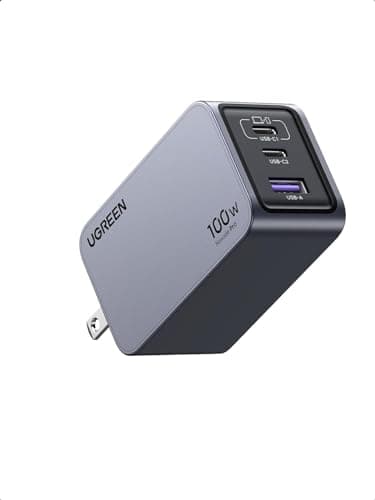
UGREEN Nexode 100W 3-Port GaN Charger
- 100W total output across 3 ports (2× USB-C, 1× USB-A)
- Single USB-C port delivers up to 100W — enough for a 14" MacBook Pro or most Windows laptops
- Full USB-C Power Delivery 3.0 with 5V/9V/15V/20V profiles
- GaN II tech keeps it about half the size of an old laptop brick
- Foldable plug for travel; charges laptop + phone + earbuds at once
Pros
- +Delivers genuine 100W on a single port — fixes the #2 cause (underpowered charger) outright
- +Negotiates real USB-C PD voltages instead of staying at 5V like cheap chargers
- +Compact GaN body fits a travel kit while still powering a laptop
Cons
- −Total wattage is shared when multiple devices are plugged in
- −Overkill if you only ever charge a phone
Best for: Anyone whose old or low-wattage charger can't keep a laptop charged under load and wants one charger that does.
Who should skip: If your laptop's original adapter is already 100W+ and works, you don't need to replace it. Owners of 140W-class 16" laptops should size up to a 140W charger.
Two of the most common reasons a laptop won't charge over USB-C are a charger that doesn't support Power Delivery and a charger that simply doesn't push enough watts. The UGREEN Nexode 100W solves both: it negotiates the full PD voltage range and delivers a true 100W on its primary USB-C port — enough to charge most laptops while they run.
See Current Price on Amazon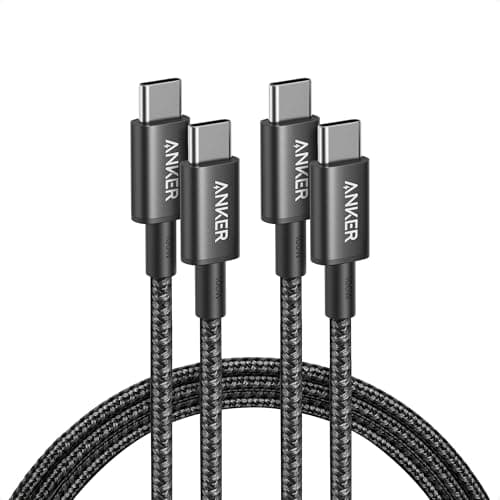
Anker USB-C to USB-C 100W Cable (2-Pack, 6ft)
- 100W Power Delivery support via built-in E-marker chip
- 2-pack of 6ft (1.8m) cables — keep one at the desk, one in the bag
- Carries the full 5A required for 100W charging
- USB 2.0 data (480 Mbps) — built for power, not external SSD transfers
- Rated for 25,000+ bend cycles at the connectors
Pros
- +E-marker chip lets the cable carry 5A, breaking the silent 60W ceiling of basic cables
- +Two cables for the price of one cheap one — instantly rules out a bad cable
- +Verified 100W charging so a capable charger isn't throttled by the wire
Cons
- −USB 2.0 data speeds only — not for external SSD or 4K display use
- −6ft length is generous for a desk but long for an ultralight travel kit
Best for: Anyone diagnosing a no-charge issue who needs a known-good 100W cable to swap in and rule out the most common culprit.
Who should skip: If you need to transfer data to an external SSD or drive a 4K display through the same cable, you need a USB 3.2 Gen 2 or Thunderbolt cable instead — this one is for charging.
The single most common reason a USB-C charger won't charge a laptop is the cable — many are charge-only, low-wattage, or lack the E-marker chip needed above 60W. This certified 100W Anker cable carries the full 5A, and at a 2-pack price it's the cheapest, fastest way to eliminate the cable as the suspect.
See Current Price on AmazonRelated Guides
Why Is My USB-C Charging So Slowly?
The 7 causes of slow charging — when power reaches the battery but something throttles it
Does USB-C Cable Quality Affect Charging Speed?
E-marker chips, wire gauge, and what separates a $5 cable from a $25 one
Can I Use Any USB-C Charger for My Laptop?
How wattage and Power Delivery decide whether a charger will actually charge your laptop
Best 100W USB-C Chargers
Our full guide to 100W GaN chargers for laptops — travel, desktop, and value picks