
USB-C Glossary: Every Term Explained (2026)

USB-C should be simple — one connector for everything. In practice, the terminology is a maze: USB4, Thunderbolt 4, PD 3.1, EPR, E-Marker, GaN, Alt Mode. Manufacturers use these terms inconsistently, and the USB-IF has renamed standards multiple times. This glossary defines every meaningful USB-C term in plain English, organized by category, so you know exactly what you are buying and why it matters.
Quick Answer: What does USB-C mean?
USB-C is a reversible connector standard that supports data transfer, video output, and power delivery up to 240W through a single cable. The connector itself is just the physical shape — the actual capabilities depend on which underlying protocol (USB 3.2, USB4, Thunderbolt, Power Delivery) is running through it.
Connectors & Standards
USB-C
USB-C is the name of the physical connector — a small, oval, reversible plug standardized by the USB Implementers Forum (USB-IF) in 2014. Because it is symmetrical, it plugs in either way up. The connector itself is just the physical shape; the actual capabilities (speed, power, video) depend on the underlying protocol being used through that connector.
USB 3.2 Gen 1
USB 3.2 Gen 1 is a data transfer standard supporting speeds up to 5 Gbps (gigabits per second). It was previously known as USB 3.0 and USB 3.1 Gen 1 — the USB-IF has renamed it multiple times, causing significant confusion. A USB-C port labeled USB 3.2 Gen 1 is adequate for most everyday file transfers.
USB 3.2 Gen 2
USB 3.2 Gen 2 doubles the data speed of Gen 1 to 10 Gbps. Previously marketed as USB 3.1 Gen 2 or 'SuperSpeed+'. It is commonly found on modern laptops and is fast enough for external SSDs. USB 3.2 Gen 2x2 pushes this further to 20 Gbps using two simultaneous 10 Gbps lanes.
USB4
USB4 is the newest generation of the USB standard, supporting data speeds up to 40 Gbps (USB4 Gen 3x2) and incorporating Thunderbolt 3 compatibility. USB4 always uses the USB-C connector. Version 2.0 of USB4 (released 2022) supports up to 80 Gbps. All USB4 ports support Power Delivery for charging.
USB-IF (USB Implementers Forum)
The USB Implementers Forum is the non-profit organization that defines and maintains USB standards, including the USB-C connector specification and the USB Power Delivery protocol. USB-IF also runs a certification program — products displaying the USB-IF certified logo have passed compliance and safety testing. Non-certified chargers and cables are not guaranteed to meet the published specifications.
Backward Compatibility
In the USB-C context, backward compatibility means that a newer standard (such as USB4 or Thunderbolt 4) can still communicate with older USB standards. For example, a Thunderbolt 4 port is backward compatible with USB 3.2 and USB 2.0 devices. However, the connection will only run at the lower speed. Physical adapters are sometimes required because older devices use different connector shapes (USB-A, Micro-USB).
Power & Charging
Power Delivery (PD)
USB Power Delivery is a fast-charging protocol defined by the USB-IF that allows a charger and device to negotiate how much power to transfer over a USB-C cable. Instead of delivering a fixed voltage, PD supports multiple voltage levels (5V, 9V, 15V, 20V) and currents up to 5A. The device — not the charger — decides how much power it accepts, making PD inherently safe.
Related: How USB-C Power Delivery Works →
PD 3.0
USB Power Delivery 3.0 is the version of the PD protocol that supports a maximum of 100W (20V at 5A). It introduced Programmable Power Supply (PPS) profiles, which allow chargers to adjust voltage in very fine increments for more efficient smartphone fast charging. Most modern USB-C laptops charge via PD 3.0.
PD 3.1 / Extended Power Range (EPR)
USB Power Delivery 3.1 extends the maximum power beyond 100W by adding new voltage levels: 28V, 36V, and 48V. At 48V with 5A, a PD 3.1 charger can deliver up to 240W through a single USB-C cable. This is called Extended Power Range (EPR). EPR requires a compatible charger, a compatible device, and a cable specifically rated for EPR — standard 100W cables are insufficient.
EPR (Extended Power Range)
Extended Power Range is the feature introduced in USB PD 3.1 that enables power delivery above 100W — up to 240W maximum. EPR makes USB-C viable for high-performance gaming laptops and even some desktop workstations. All three components (charger, cable, and device) must be EPR-rated. As of 2026, EPR devices are still relatively uncommon but growing in the premium laptop segment.
Fast Charging
Fast charging is a broad term for any charging technology that delivers power faster than the old USB standard of 5W. This includes USB Power Delivery (the universal standard), as well as proprietary protocols like Qualcomm Quick Charge, Apple Fast Charge, and VOOC. USB-C PD is the most universal fast-charging standard — a PD charger will fast-charge most modern phones and laptops. Proprietary protocols may charge faster on specific branded devices but offer no benefit on others.
Pass-Through Charging
Pass-through charging is when a USB-C hub or dock simultaneously charges your laptop (via the laptop's USB-C port) while also providing additional ports. The hub receives power from a wall charger, then 'passes through' a portion of that power to your laptop. Hubs typically reduce the pass-through wattage slightly — a 100W input might pass through 85-90W to the laptop after powering the hub's own circuitry.
Watt (W) / Ampere (A) / Volt (V)
These are the three fundamental electrical units relevant to USB-C charging. Volts (V) measure electrical pressure. Amperes or amps (A) measure electrical current (the flow rate). Watts (W) measure total power, calculated as Volts × Amps. So a charger running at 20V and 5A delivers 100W. When comparing chargers, always look at the wattage figure — it tells you how much total power the charger can provide.
GaN (Gallium Nitride)
Gallium Nitride is a semiconductor material used in the transistors inside modern chargers. GaN switches electricity faster and more efficiently than traditional silicon, generating less heat. This allows manufacturers to build chargers that are significantly smaller and lighter without sacrificing wattage. A GaN 65W charger is typically 40–60% smaller than an equivalent silicon charger from a few years ago.
Related: GaN Chargers vs Regular Chargers →
Cables
E-Marker Chip
An E-Marker (electronically marked) chip is a small authentication IC embedded inside the connector of USB-C cables rated for 5A or more. The chip communicates the cable's current-carrying capability to the charger and device. Without an E-Marker, the USB PD standard automatically caps the cable at 3A (60W maximum at 20V), regardless of what your charger or laptop supports. Cables for 100W charging must have an E-Marker; cables for 240W (EPR) need a higher-rated EPR E-Marker.
Data Transfer Rate (Gbps)
Data transfer rate measures how quickly data moves through a cable, expressed in gigabits per second (Gbps). A USB 3.2 Gen 1 cable transfers at 5 Gbps; a Thunderbolt 4 cable at up to 40 Gbps. Note that marketing often lists 'up to' speeds — real-world transfers depend on both the cable's rated speed and the slowest device in the chain. For perspective, 10 Gbps can transfer a full 4K movie in under 10 seconds.
Display & Video
DisplayPort Alt Mode
DisplayPort Alternate Mode (DP Alt Mode) is a feature that allows a USB-C port to carry DisplayPort video signals. When DP Alt Mode is active, some of the USB-C connector's lanes are repurposed to transmit video instead of data. This enables connecting a USB-C laptop directly to a DisplayPort monitor using a USB-C-to-DisplayPort cable with no adapter needed. Not all USB-C ports support DP Alt Mode — check your laptop's specifications.
HDMI Alt Mode
HDMI Alternate Mode allows a USB-C port to output HDMI video signals directly. It is less common than DisplayPort Alt Mode. Most USB-C to HDMI adapters and hubs convert DisplayPort Alt Mode to HDMI internally using a chip — these work on any DP Alt Mode port. True HDMI Alt Mode (without conversion) is relatively rare and only found on specific smartphones and some Qualcomm-based laptops.
Thunderbolt 3
Thunderbolt 3 is Intel's high-performance interface that uses the USB-C connector and offers up to 40 Gbps data speed, supports dual 4K displays or one 5K display, and can deliver up to 100W of charging power. It is backward compatible with USB 3.1/3.2 devices. Thunderbolt 3 cables look identical to USB-C cables but are rated to carry Thunderbolt signals — using a standard USB-C cable in a Thunderbolt 3 port works but limits speed to USB rates.
Thunderbolt 4
Thunderbolt 4 is the successor to Thunderbolt 3. It maintains the same 40 Gbps maximum bandwidth but sets stricter minimum requirements: all Thunderbolt 4 ports must support two 4K displays, PCIe tunneling at 32 Gbps, USB4 compatibility, and wake-from-sleep via connected devices. Thunderbolt 4 also adds improved security features. It uses the same USB-C connector as Thunderbolt 3.
Daisy Chaining
Daisy chaining is the ability to connect multiple devices in a chain — device A plugged into device B plugged into device C — with only one cable connecting back to the laptop. Thunderbolt 3 and 4 support daisy chaining of up to six devices. Standard USB-C does not natively support daisy chaining; USB hubs can expand ports but require a dedicated cable back to the laptop rather than passing the signal through.
Accessories
Hub vs. Dock
A USB-C hub is a compact, bus-powered device that adds ports to your laptop — typically 2–4 USB-A ports, HDMI, and an SD card slot. It draws power from your laptop itself. A USB-C dock is a larger, wall-powered station that provides many more ports (Ethernet, multiple display outputs, audio jacks, USB-A and USB-C) and can charge your laptop simultaneously. Hubs are for travel; docks replace a full desktop port setup.
Related: Best USB-C Hubs for MacBook →
Dongle
A dongle is an informal term for a small single-purpose adapter that converts one port type to another — for example, a USB-C to USB-A dongle or a USB-C to HDMI dongle. Unlike hubs, dongles typically only add one port. The term gained popularity (and some mockery) when Apple removed legacy ports from MacBooks in 2016, forcing users to carry multiple adapters. A multi-port hub is often a better solution than several individual dongles.
Gear That Demonstrates These Terms
Specifications are easier to understand when you can point at hardware that implements them properly. These two cover the terms people look up most: E-marker, USB-IF certification, PD, PPS and GaN. For a deeper explanation of the E-marker chip specifically, see our E-marker chip guide.
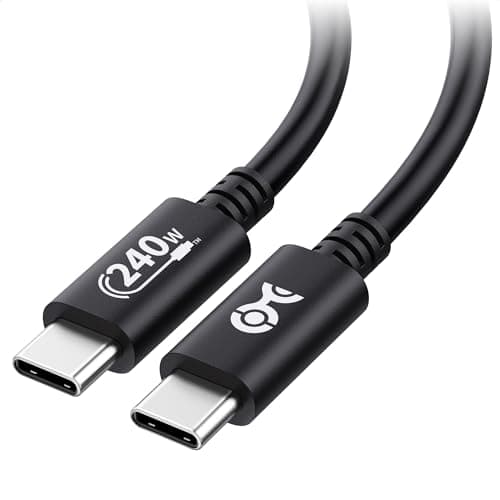
Cable Matters USB-IF Certified 240W USB-C Cable
$8.99
Key Specifications
- USB-IF certified
- E-marker chip (required above 60W)
- 240W EPR rating
- 3.3ft length
- 480Mbps data transfer
Pros
- Demonstrates two glossary terms in one product: E-marker and USB-IF
- Certification is third-party verified, not self-declared
- EPR-rated, so it supports the 240W tier
- Inexpensive enough to standardise on
Cons
- Short 3.3ft run
- USB 2.0 data speeds
Why it's a good choice
Two of the most-searched terms in this glossary — E-marker and USB-IF certification — are abstract until you hold a cable that has both. Without an E-marker a USB-C cable is capped at 60W regardless of the charger; USB-IF certification is the only marking that confirms a third party verified the claim. This cable is the cheapest way to own a reference example of both.
✓ Buy if you have:
Anyone charging above 60W, people auditing which of their cables have E-markers, first-time buyers after reading the spec
✗ Skip if you have:
Users needing long runs or high-speed data — this optimises for certified charging, not reach or bandwidth
Best for:
Anyone who just learned what an E-marker chip is and wants a cable that has one
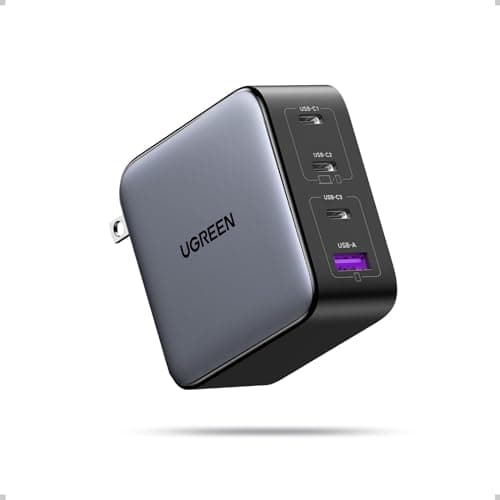
UGREEN Nexode 100W 4-Port GaN Charger
$42.99
Key Specifications
- 100W total output
- PD 3.0 with full voltage ladder
- PPS support
- GaN semiconductor
- 4 ports
Pros
- Implements PD, PPS and GaN — three glossary entries in one device
- Advertises the complete voltage ladder rather than a subset
- Reallocates power dynamically across ports
- Compact for its output thanks to GaN
Cons
- Per-port wattage drops when all ports are loaded
- Below the 140W EPR tier
Why it's a good choice
PD, PPS and GaN are the three terms that come up most often in USB-C buying decisions, and plenty of chargers claim all three while implementing only part of each. This one advertises the full PD voltage ladder, supports PPS for phones that request it, and uses GaN to stay small at 100W. It is a useful reference point for what the specifications look like when properly implemented.
✓ Buy if you have:
Anyone shopping after reading the spec, multi-device desks, users replacing a charger that falls back to 5V
✗ Skip if you have:
Owners of 140W-class laptops needing the EPR tier, and single-device users
Best for:
Putting the charging terms in this glossary into practice on a real desk
Ready to Put This Knowledge to Use?
Now that you know what the terms mean, our buying guides help you choose the right gear for your setup.
Go Deeper on Key Topics
Each of these guides expands on the terminology above with practical advice, real-world tests, and product recommendations.