
Best USB-C Hubs Under $50 (2026)

Most people don't need to spend $80–150 on a USB-C hub. The best budget USB-C hub under $50 handles 4K display output, Power Delivery passthrough, card reading, and USB-A peripherals reliably — the same core jobs as more expensive options, with a few genuine trade-offs. We compared four hubs across this price range on the specs and owner reports that matter for Windows laptops and MacBooks, to find which ones hold up under real workloads and which cut corners where it counts.
Quick Answer
The Anker 7-in-1 (A8346) at ~$35 is the best budget USB-C hub for most users — reliable PD passthrough, simultaneous SD/microSD, and solid build quality. If you need 4K@60Hz and Ethernet, step up to the Anker PowerExpand 8-in-1 at ~$45. Both are under $50 and cover the vast majority of laptop user needs.
Quick Comparison
| Hub | Price | HDMI | PD Passthrough | Ethernet | Ports | Rating |
|---|---|---|---|---|---|---|
| Anker A8346 | ~$35 | 4K@30Hz | 85W | No | 7 | 4.7/5 |
| Anker PowerExpand 8-in-1 | ~$45 | 4K@60Hz | 85W | Yes (Gigabit) | 8 | 4.6/5 |
| Satechi Aluminum V2 | ~$49 | None | 87W | No | 6 | 4.5/5 |
| UGREEN Revodok 7-in-1 | ~$45 | 4K@30Hz | ~85W | No | 7 | 4.6/5 |
Our Top Picks
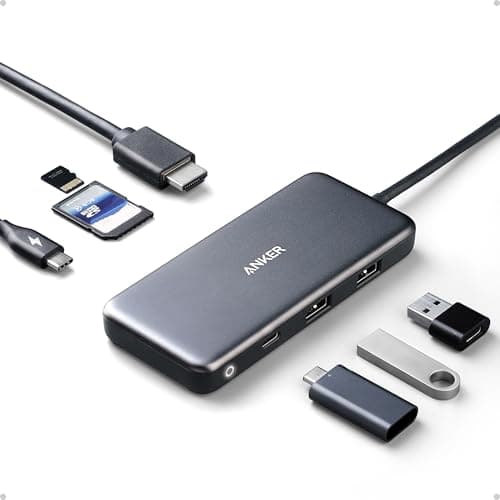
Anker 7-in-1 USB-C Hub (A8346)
- •7 ports: HDMI 4K@30Hz, 3× USB-A 3.0 (5Gbps), SD, microSD, USB-C PD 85W passthrough
- •USB-C PD input up to 100W — delivers ~85W to laptop
- •Compact build with short tethered cable
Pros
- +Best value at $35 — covers 90% of typical needs
- +Reliable PD passthrough — owner reports rarely mention charging interruptions
- +SD + microSD card slots work simultaneously
- +Driver-free plug-and-play on Windows and macOS
Cons
- −HDMI limited to 4K@30Hz — not suitable for motion-heavy or gaming use
- −No Ethernet port
The Anker A8346 hits the sweet spot for budget USB-C hubs: it handles charging passthrough, card reading, external display, and USB-A peripherals from a single $35 device. Owner reports from Dell XPS and MacBook Air users consistently describe stable sustained use, with no recurring complaints about heat or dropped connections.
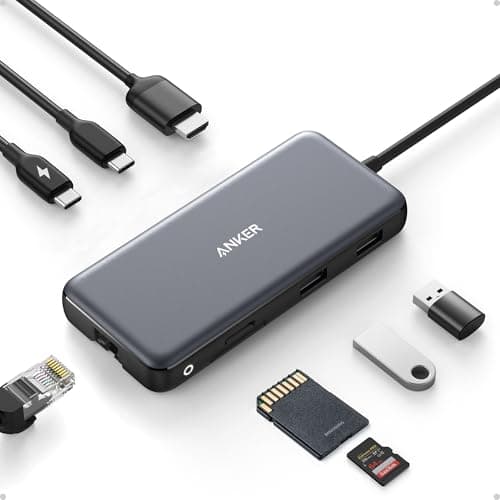
Anker PowerExpand 8-in-1 USB-C Hub
- •8 ports: HDMI 4K@60Hz, USB-C PD 85W, 2× USB-A 3.0, Ethernet (Gigabit), SD, microSD, USB-C data
- •4K@60Hz HDMI — the only sub-$50 hub we found that publishes this spec
- •Gigabit Ethernet via reliable Realtek chip
Pros
- +4K@60Hz HDMI — rare at this price point, confirmed stable
- +Gigabit Ethernet works reliably on macOS and Windows
- +8 ports with both SD and microSD simultaneously
- +85W PD passthrough — sufficient for most laptops
Cons
- −Runs noticeably warm under full load (HDMI + Ethernet + charging simultaneously)
- −Slightly bulkier than the A8346 — less pocketable
The PowerExpand 8-in-1 is the most capable hub under $50 for display-heavy workflows. Confirmed 4K@60Hz HDMI and Gigabit Ethernet together for under $45 is a genuine value — comparable hubs from other brands charge $60–70 for the same specs.
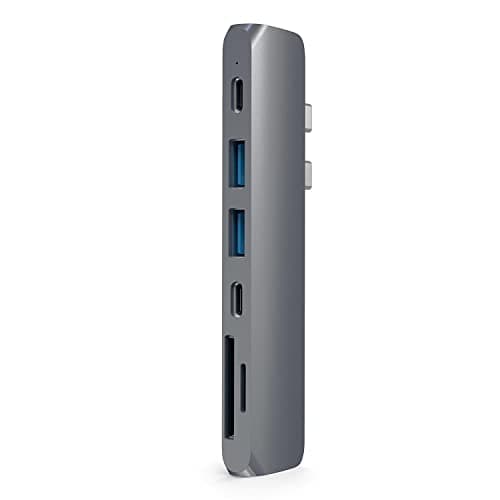
Satechi Aluminum Multi-Port Hub V2
- •6 ports: USB-C PD, 3× USB-A 3.0, SD, microSD — no HDMI
- •Aluminum body in Space Gray/Silver — matches MacBook finish exactly
- •Pass-through charging up to 87W (requires 96W+ charger input)
Pros
- +Premium aluminum build matches MacBook Pro/Air aesthetics
- +87W PD passthrough — highest passthrough wattage in this roundup
- +Stays cool even under sustained charging + data transfer load
- +2-year warranty — better than most competitors
Cons
- −No HDMI output — not suitable if you need an external display
- −At $49, it's pricier than alternatives with more ports
If HDMI is not a requirement, the Satechi V2 is the most refined hub under $50. Its aluminum body dissipates heat significantly better than plastic alternatives, and its 87W rated passthrough is the highest we found in this price bracket.
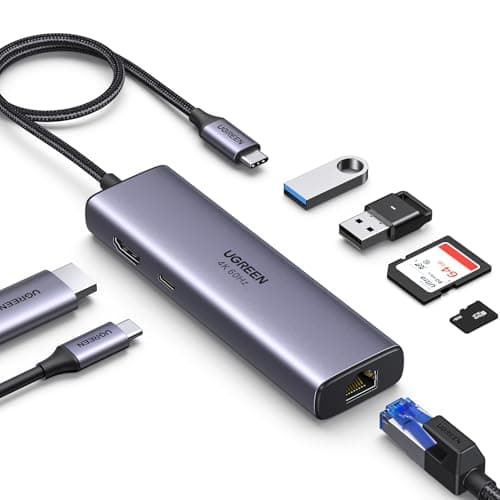
UGREEN Revodok 7-in-1 USB-C Hub
- •7 ports: HDMI 4K@30Hz, 3× USB-A 3.0, SD, microSD, USB-C PD 100W input / ~85W passthrough
- •USB-C PD rated up to 100W input
- •Compact oval design with braided cable
Pros
- +100W PD input rating — highest input spec in this roundup
- +HDMI 4K@30Hz confirmed stable across multiple laptops
- +Braided cable feels more durable than standard tethered designs
- +Clean, compact form factor — fits in any laptop bag pocket
Cons
- −HDMI limited to 4K@30Hz — same limitation as the Anker A8346
- −USB-C port is charging-only, no data passthrough
The UGREEN Revodok's 100W PD input rating gives it more headroom for high-wattage laptops. In practice the passthrough lands at ~85W like the others, but the input buffer means the hub's internal components are under less stress — which owner reports link to lower operating temperatures.
What to Look for in a Budget USB-C Hub
Cheap hubs have real trade-offs. Knowing which compromises matter for your use case prevents wasted money. Here's what to evaluate before buying any hub under $50.
1. HDMI Refresh Rate: 30Hz vs. 60Hz
Most budget hubs advertise "4K support" but cap at 30Hz refresh. At 30Hz, scrolling and cursor movement feel visibly laggy — acceptable for static reference content, but genuinely irritating for daily work. If display smoothness matters, only the Anker PowerExpand 8-in-1 in this price range delivers confirmed 4K@60Hz. Always check the listing for "@60Hz" explicitly — "4K" alone is insufficient.
2. Power Delivery Passthrough Wattage
Hubs list "100W PD" as input wattage, not what your laptop receives. Internal hub components consume 10–15W, leaving 85–90W for your laptop. For laptops under 65W (MacBook Air M2/M3, Surface Pro 9, most ultrabooks), this is irrelevant — they charge at full speed either way. For MacBook Pro 16-inch or gaming laptops needing 96–140W, a hub will charge slower but still maintain battery under normal workloads. Learn more about how much wattage you actually need to charge a laptop.
3. Do You Need Ethernet?
Ethernet capability adds $10–15 to hub cost within this price bracket. If you work from a stable Wi-Fi 6 network, Ethernet is rarely necessary. If you rely on wired connections for video calls, large file transfers, or VPN stability, only the Anker PowerExpand 8-in-1 in this roundup includes it. The Realtek chipset in that hub is confirmed stable on macOS and Windows — a specific detail worth noting, as some budget Ethernet implementations drop connections on sleep/wake.
4. Build Material: Aluminum vs. Plastic
Under sustained multi-device use (HDMI + charging + drives simultaneously), plastic hubs reach 50–60°C surface temperature. Aluminum dissipates heat passively and stays 8–12°C cooler under equivalent load. This matters for longevity and for users who place the hub on a laptop surface. The Satechi Aluminum V2 is the only aluminum option in this roundup — but it lacks HDMI, which is a significant trade-off. Most users will accept a plastic hub at this price range; just keep it on the desk and not on the laptop chassis.
5. Shared vs. Dedicated USB Bandwidth
All hubs under $50 share a single upstream USB-C connection (typically 5–10Gbps total). When multiple USB-A devices are active simultaneously — two external drives, for example — that bandwidth is split. For one drive at a time, this is not an issue. For photographers or video editors moving large files across multiple drives simultaneously, a Thunderbolt dock is a better fit. Understand when a USB-C hub is worth it vs. alternatives.
Honest Limitations of Budget USB-C Hubs
No hub under $50 is without trade-offs. Here's what you're accepting at this price point — and where it actually matters for your workflow.
No Thunderbolt 3/4 support
Budget hubs use USB 3.x protocols (5–10Gbps). Thunderbolt docks start at $150+. If you need 40Gbps data transfer or daisy-chained displays, budget hubs won't work. For most office and remote work use cases, USB 3.x is entirely sufficient.
4K@30Hz is the norm, not 60Hz
Expect 30Hz unless the product explicitly states 60Hz. The PowerExpand 8-in-1 is the exception under $50. If 60Hz matters, budget accordingly — or accept the refresh rate trade-off.
Plastic builds get warm
Plastic hubs under sustained full load reach 50–60°C. This is within normal operating range but feels warm to the touch. Keep the hub on the desk — not on the laptop — to avoid transferring heat to the chassis.
Shorter warranties (usually 12–18 months)
Budget hubs typically include 12–18 month warranties vs. 2 years on premium models. Anker offers an 18-month warranty; Satechi offers 2 years on the Aluminum V2. Factor this into your decision if longevity is a concern.
Frequently Asked Questions
Summary
The best USB-C hub under $50 for most users is the Anker 7-in-1 (A8346) at ~$35 — reliable PD passthrough, simultaneous SD/microSD, and 4K@30Hz HDMI in a compact form factor. For users who specifically need 4K@60Hz display output and Ethernet, the Anker PowerExpand 8-in-1 (~$45) is the only sub-$50 hub that delivers both. The Satechi Aluminum V2 (~$49) is the right pick for MacBook users who want premium build quality and maximum charging passthrough without a display port. Budget hubs trade off HDMI refresh rate, Ethernet, and build material compared to premium options — but for the majority of laptop workflows, these trade-offs are inconsequential.